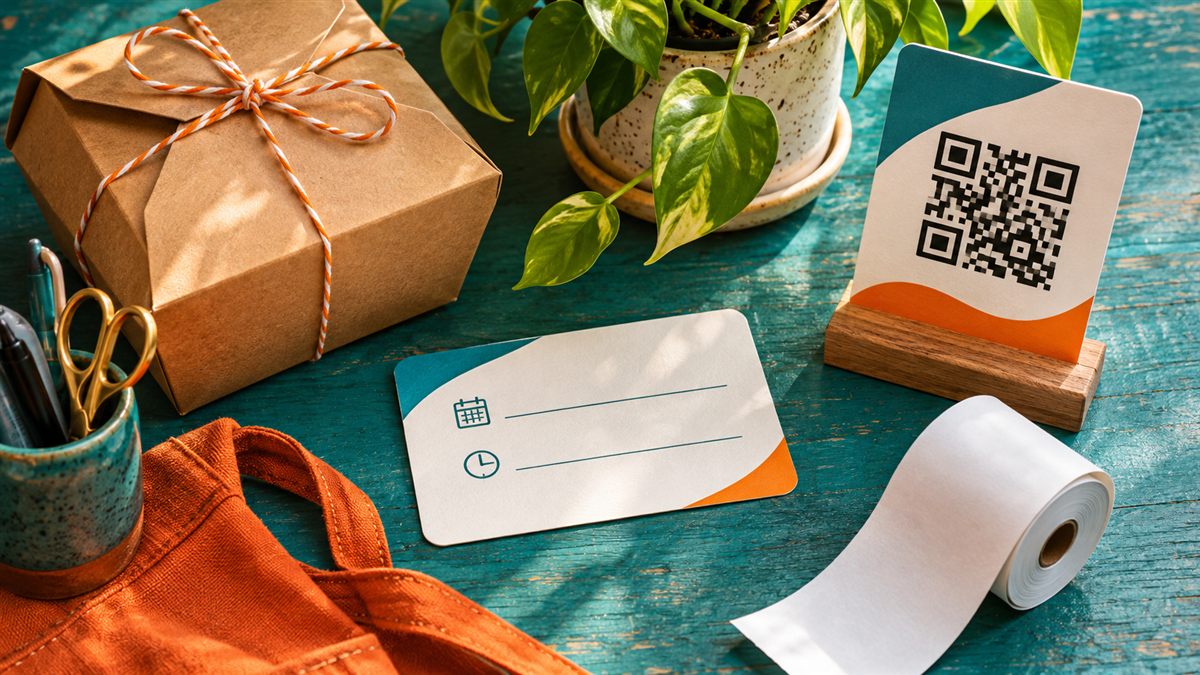
The best first QR code solves a real customer task: open a current menu, join guest Wi-Fi, save a contact or find directions. Choose one useful action, create a clear code, label it and test the whole experience before you print it. QRPathway supports several QR types and, where available, managed links that can be updated and measured.
Start with the place where customers already need help. A code at a restaurant table should open a useful menu; a service card can help a customer contact the right team. Keep an alternative for people who cannot or prefer not to scan.
Choose a task and QR type
| Customer's task | QRPathway starting point | What to check |
|---|---|---|
| View a menu or manual | File or URL | The document or page is readable and current. |
| Join guest Wi-Fi | Wi-Fi | The guest network credentials are correct and intended to be shared. |
| Save a contact | vCard | The contact details are public and correct. |
| Open directions | URL to a map or Location | The pin and branch are right. |
| Leave a review | URL to the appropriate review link | The visitor reaches the intended business. |
| Book, enquire or download | URL, Email, Phone or File | The action works for a visitor on a phone. |
For step-by-step help, see the file QR tutorial, guest Wi-Fi guide, vCard guide and Google review tutorial.
Create your first code
- Choose one customer action and prepare the destination or information. Open any webpage or file on a phone and check access without your own account.
- Open the QRPathway creator, select the matching type and enter the required details.
- For a web address that may move, consider a dynamic URL where available. Keep the managed link and alias active after printing.
- Choose a high-contrast design, retain the clear border, create and download the code.
- Add a short label explaining the action, print a proof at the intended size and scan it on more than one device.
Feature availability and limits depend on your account and plan. The static QR tutorial and dynamic QR tutorial explain the difference.
Five useful places to start
At the counter: A clearly labelled review or booking link lets interested customers act at a convenient moment. Follow the destination platform's rules and avoid pressuring people for a particular review.
On a table: A menu code can open a current page or supported file. Keep a printed or staff-assisted option for guests who prefer it.
On a business card: A vCard offers contact details, while a phone or email code can open a specific contact action. Directly encoded details are fixed, so replace the code when those details change.
Inside packaging: Link to a product manual or setup page and include a written support route. Keep required safety information available in the appropriate form.
On a flyer: Give readers a reason to scan and match the landing page to the offer. Use separate managed links if you want to compare placements, and record how many materials were distributed.
Static, dynamic and file: what changes later?
A static code stores its information in the pattern. You cannot change a printed phone number or direct URL inside it, though you may update a webpage at the same address. A dynamic URL code points to a managed link, so you can change the destination without changing the printed image while the original link and alias remain active. QRPathway's File workflow is designed for replacing a saved upload behind a managed link; test the old code after an update.
For any option, the destination and service must remain available. Keep a record of the code, its owner, link, physical placements and last test date. Assign someone to check it when a menu, offer or contact detail changes.
Measure a campaign without overclaiming
Managed-link analytics can help show link activity, subject to plan and settings. A pageview does not prove a unique scan, a sale or a review. To understand results, compare the link activity with bookings, sales or form submissions recorded by the destination system. Use distinct links for placements you want to compare and note differences in audience and distribution. See how to understand QR code analytics.
A practical launch checklist
- Tell people what opens, and provide an alternative link or contact method.
- Check that the destination works on a phone and is accessible to the intended audience.
- Use a clear border and strong contrast; test the final print in realistic light.
- Check the correct branch, language and offer. Avoid exposing private information in a public code.
- Keep a record of the link owner and scan an old print after any destination change.
If the pattern fails or the destination is broken, use the QR troubleshooting guide.
Common questions
Do small businesses need a different code for every task?
Not always. Separate codes are helpful when actions or locations differ. One clear code can be enough for a single task.
Can I change a code after printing?
The image stays the same. An editable dynamic link can point it to a new destination, and content at a fixed URL can also be updated if you control it. Test the original printed code after a change.
Can a QR code tell me how many sales it made?
Link activity alone does not confirm a sale. Measure the completed action in the booking, payment or analytics system that records it.
Choose a customer task and begin in the QR code creator.