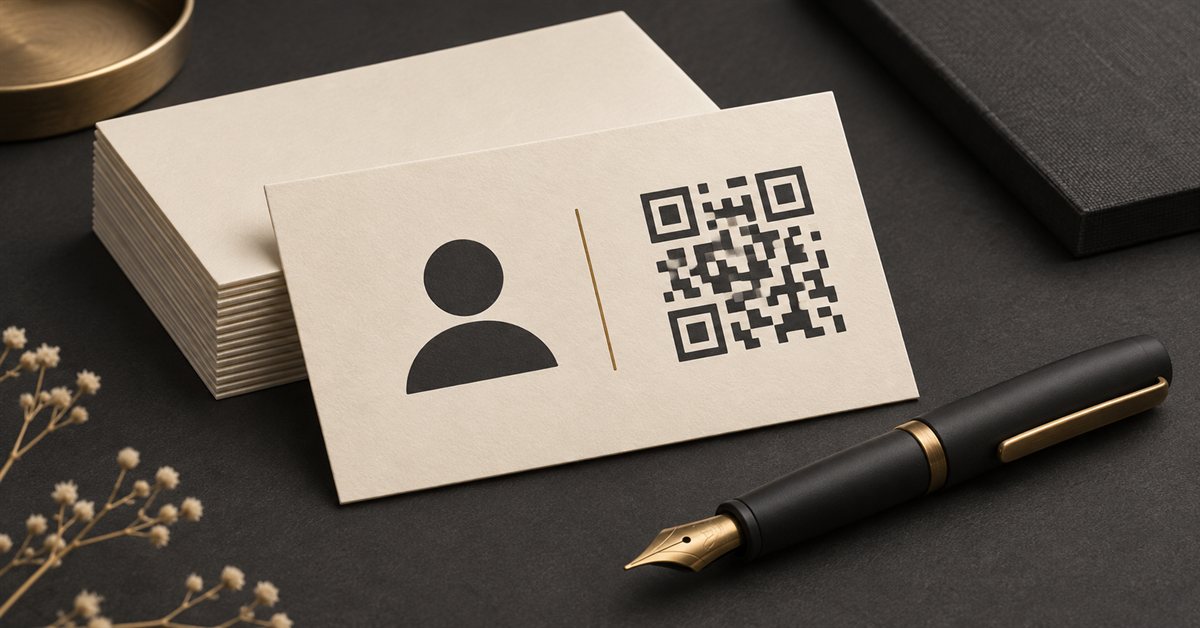
A vCard QR code can encode contact details that a compatible phone offers to save. On a business card, it gives someone an alternative to typing your details. Include essential information in readable text too, so the card still works without a scanner.
Create the vCard code
- Open the vCard QR code generator, or choose Vcard under QR Type in your account.
- Enter the contact details you want to share, such as name, email, website, company and job title.
- Add phone numbers or social links using the available sections if needed.
- Review the information, customize the code and download it.
- Scan it with compatible phones and check the contact preview before placing it on a card.

Only include information you are comfortable distributing. Anyone who receives or decodes the code can see its encoded details.
vCard or a link to an online profile?
A directly encoded vCard contains the contact information in the pattern. If your phone number or email changes, a printed code still contains the earlier details and normally needs to be replaced.
A dynamic URL QR code can instead open a separately maintained contact page. Its owner can update the managed destination without changing the printed pattern, provided the link remains active. That is a link to a page; it is not the same as changing details already encoded in a static vCard.
Fit the code to the card
Leave a clear border around the pattern and use a dark foreground on a light background. Print an actual-size proof and scan it from a natural hand-held distance, both flat and slightly tilted. Avoid putting the code across a trim line, fold or highly reflective coating.
Test the saved contact on different phones where possible: the displayed fields and save prompts can vary. For sizing and a practical checklist, read QR code size for print.