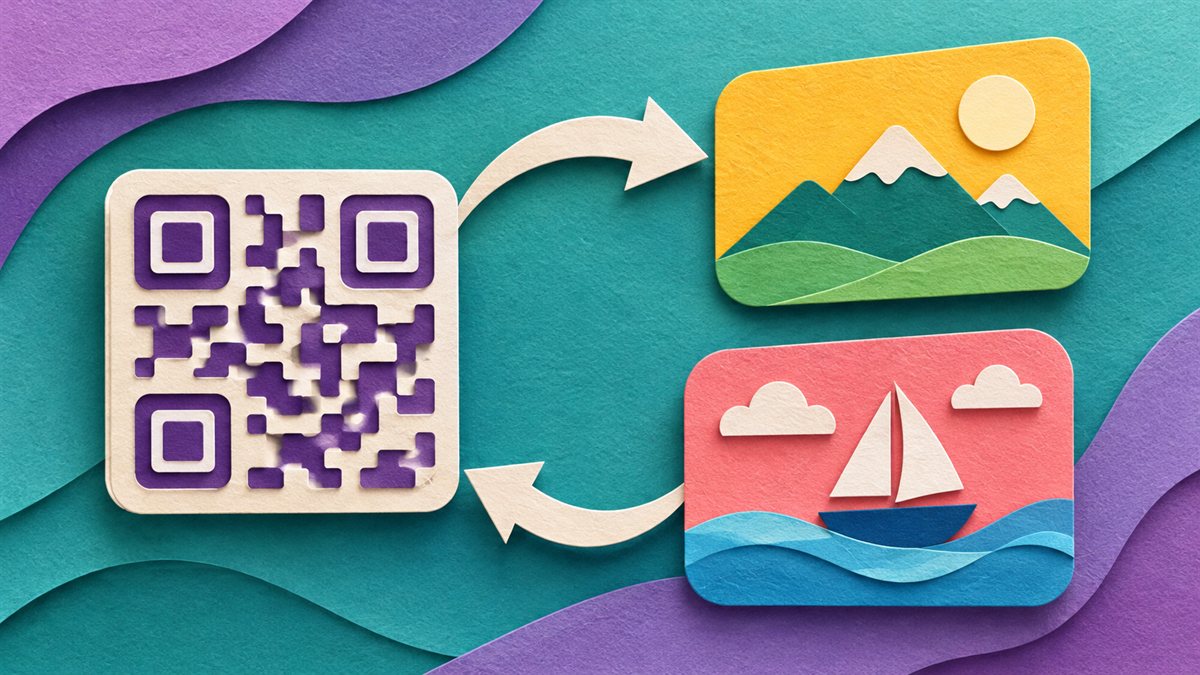
A dynamic URL QR code points to a managed short link. You can change the link's destination later while keeping the printed QR pattern the same. QRPathway's File type also uses a tracked short URL for an uploaded file.
The example below uses a website URL. You need access to the account that manages the link, and available features depend on your plan.
Create a new dynamic URL QR code
- Sign in and open QR codes → Create QR.
- Enter a name and choose URL under QR Type.
- Enter the destination website and switch on Dynamic QR code.
- Customize the design if needed, then click Create.
- Download the result, scan it and open the destination to test the whole journey.

When the dynamic option is enabled, the creator can create a new short link for the URL. You can also choose Select from pre-existing links to connect an existing managed short link.
Change the destination after printing
- Open QR codes and find your dynamic code.
- Select the edit-link icon beside its short URL, or open the same short link from Links.
- Change Destination URL, leave URL Alias unchanged, and select Update.
- Open the short URL or scan the original code again and verify the new destination.

Keep the alias: the printed QR code contains the short-link address. Changing its alias can cause the old printed code to stop working. Changing the destination behind the existing short link is the intended update.
Find the statistics
Open the statistics icon beside the QR code or its linked short link. Select a date range and review pageviews, visitors and the available breakdowns. A link visit may come from a scan, a click or automated traffic; it does not automatically prove a purchase, form submission or unique human scan.
Dynamic file QR codes
To share an uploaded document or other supported file, choose File in the QR creator, select the file, create the code and test the visitor experience. The file can be replaced later from the file QR's edit screen while retaining its managed link. Check the supported formats and size limit displayed in your account.

Static versus dynamic
A static QR stores its data directly; its pattern cannot be changed after printing. A dynamic URL QR relies on the managed short link, your account and an available destination. Keep the link active, review the applicable plan and test whenever you make a change.
Related: Create a short link · Troubleshoot a QR code.
Explore more: Create a QR code for a PDF or file · Understand QR code analytics · Use targeting and rotation.
For an earlier demonstration, watch the video walkthrough on YouTube. The interface labels in the video may differ from the current steps above.