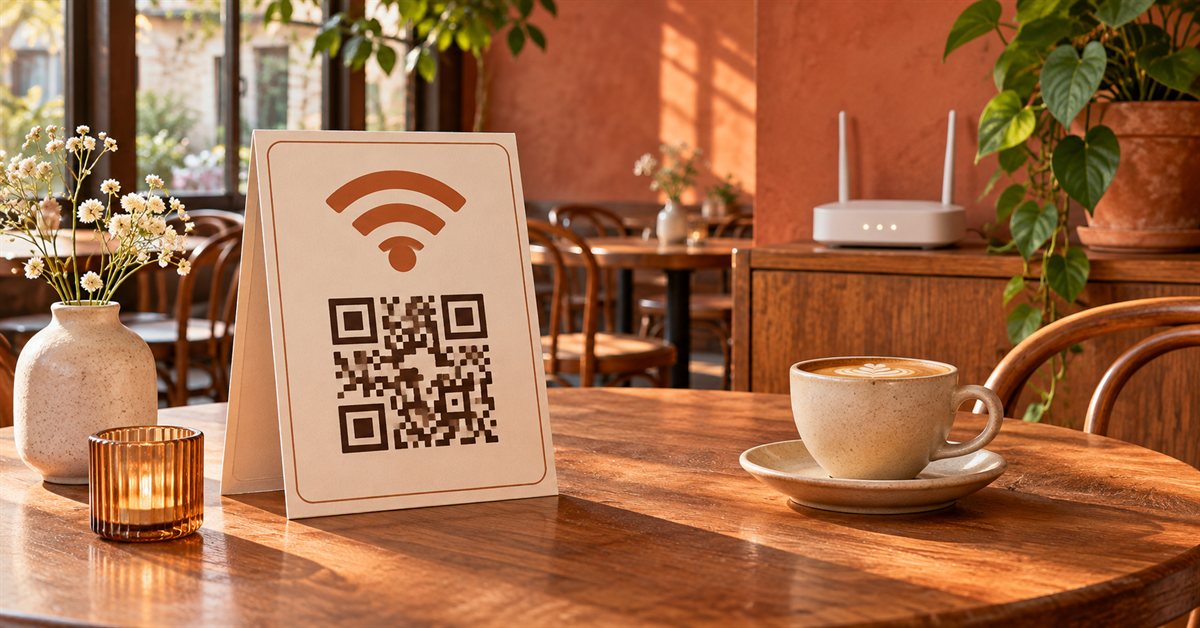
A Wi-Fi QR code can make a guest network easier to join without asking visitors to type the network name and password. Create a code with the details for a network you intend to share, then test it on compatible phones before displaying it.
Gather the network details
You will need the exact Wi-Fi network name, also called the SSID, and the correct security setting and password if the network uses one. If you are unsure, ask the person who manages the network. The form lists WEP, WPA/WPA2 and no-encryption choices, plus a hidden-network setting; check the current options for your account.
Use a guest network rather than a private staff or administration network when that suits your setup. A person who decodes a Wi-Fi QR code may be able to see the encoded credentials, so share only credentials intended for that audience.
Create the code
- Open the Wi-Fi QR code generator, or select WiFi under QR Type in the signed-in creator.
- Enter the exact WiFi name (SSID).
- Choose the network's correct Encryption option and enter the password if required.
- Set WiFi is hidden to match your network.
- Customize the code if desired, then create and download it.

The network name shown is fictional and no password is displayed.
Test and place the sign
Test the finished code with at least one iPhone and one Android phone if possible. Check that the intended network is offered and that a visitor can actually connect. Device behavior and prompts vary.
Use a short instruction such as “Connect to guest Wi-Fi,” leave a clear border and test a print proof at the intended size. A visible alternative helps guests whose phone cannot scan the code.
If the network name or password changes, replace the old Wi-Fi code with a new one containing the updated details. See the print-size guide before ordering signs.