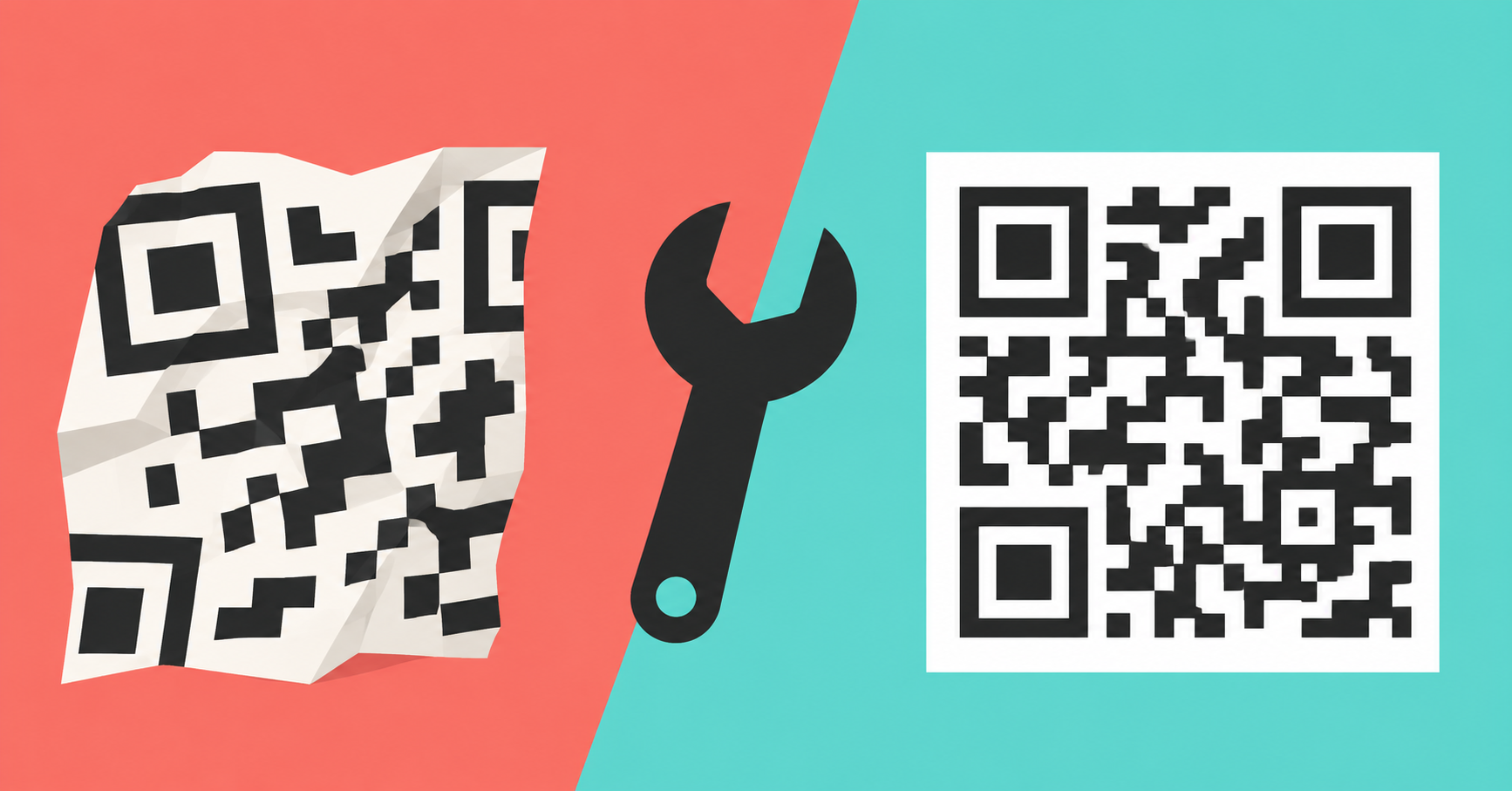
When a QR code is not working, first identify where the problem occurs: does the camera fail to recognize the pattern, or does the code scan but open the wrong page or an error? The cause and fix are different.
Start with another phone and a clean, well-lit copy of the code. If it scans, open the destination and check what happens after the scan. The steps below help you isolate the problem before you order a reprint.
If the camera cannot read the QR code
1. Check the size and sharpness
A small, blurry or pixelated pattern can be hard to read. Print a fresh proof at a larger size and scan it from the distance your audience will use. When enlarging artwork, use a suitable high-quality export rather than stretching a tiny screenshot. Our print-size guide explains how to test a proof.
2. Restore the quiet zone
The clear border around the pattern helps a scanner distinguish it from nearby graphics. A standard QR code needs a clear quiet zone four modules wide on every side. Remove text, borders and background details from that area.
3. Improve contrast
Try dark modules on a plain, light background. Pale colors, gradients, photographs behind the code and low-contrast combinations can make scanning harder. Test the final colors in the lighting where the material will be used.
4. Check for damage, logos and distortion
A large logo, folds, creases, scratches, curved packaging or cropping can obscure important parts of the code. Error correction can tolerate some damage, but it is not a license to cover an arbitrary area. Compare your design with a plain version and scan both on the finished surface.
5. Change the scan conditions
Clean the phone camera lens, avoid glare and shadows, and hold the camera steady. Move closer or farther away until the full code is in view. If one device fails, try another phone or its built-in QR scanning feature. See how to scan a QR code on iPhone and Android.
If the code scans but the destination fails
Read the address before opening it. If the phone recognizes the code, the printed pattern may be fine and the issue may be the link or destination.
- Wrong or outdated address: compare the decoded URL with the page you intended to share.
- Page is unavailable: check the page in a browser, including in a private window, and make sure it does not require an unintended login.
- Dynamic link settings: if you manage the code, check its destination and any expiration, scan-limit or access settings. Check account and plan status where applicable.
- Network problem: try a working internet connection. A QR code containing a web address still needs an accessible destination.
Can you fix a QR code after it is printed?
It depends on what is wrong. If an editable dynamic QR code points to the wrong URL, its owner may be able to change the destination without changing the printed pattern. If the pattern itself is unreadable, changing the URL will not fix the physical artwork; repair or replace the print.
A static code's encoded data cannot be changed after printing. However, if that data is a URL you control, you may be able to update the page or configure the server at that address. Otherwise, create and print a new code. Learn more about dynamic QR codes.
A quick pre-print checklist
- Use a clear, high-contrast code with its complete quiet zone.
- Print a proof at the actual size, using the intended material where possible.
- Test with more than one device, in the intended light and from the expected distance.
- Open the result and complete the intended action, not just the scan.
- Test a finished item after production and keep the working artwork for future runs.
If you need a new URL code, use the QRPathway URL QR code generator, then test the actual exported and printed result before distributing it.