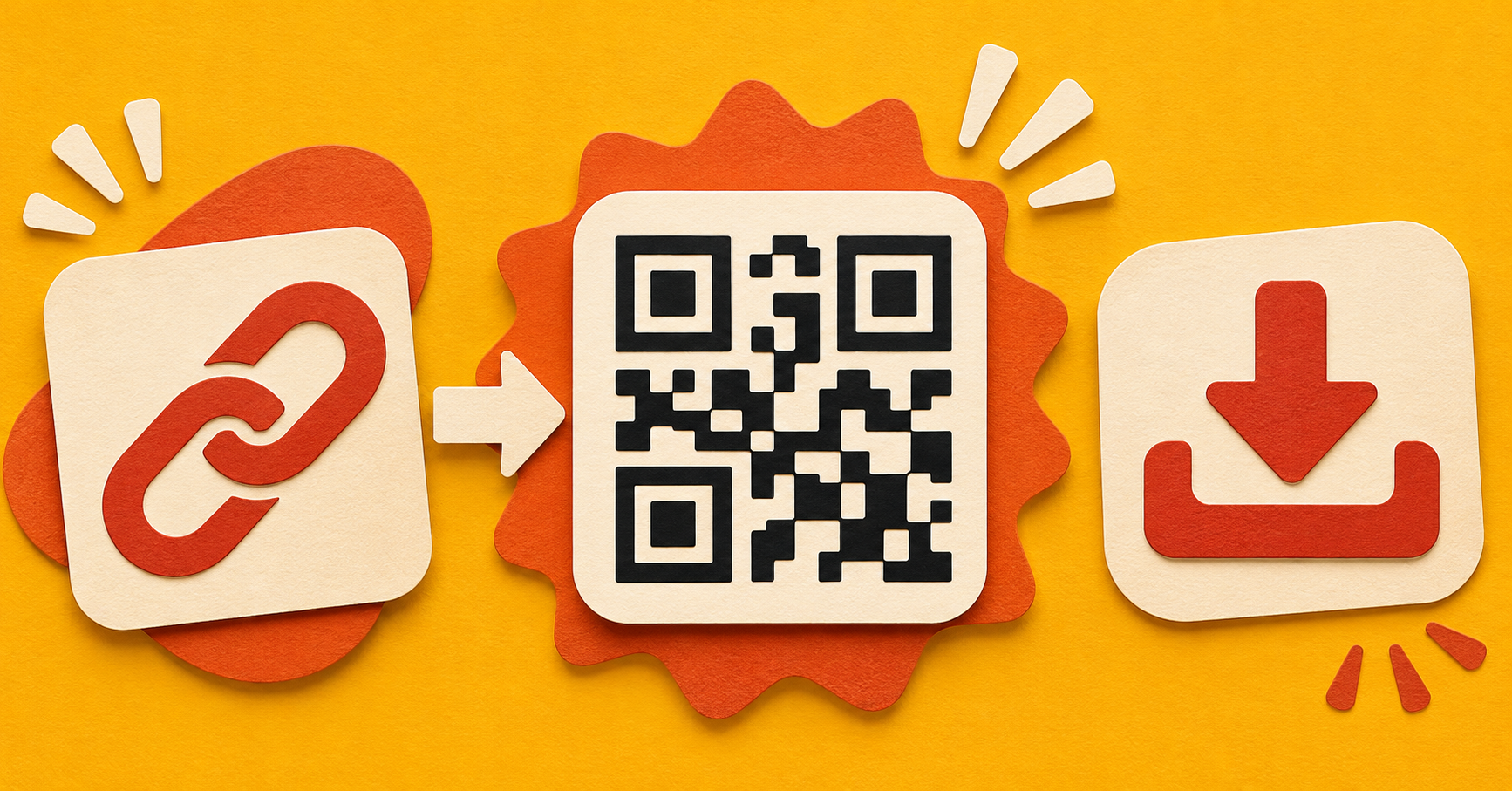
To create a QR code, choose what you want to share, enter the information in a QR code generator, download the resulting image and test it. For a website, start with the page's complete URL.
Before you print, decide whether the destination needs to change later. A static code stores its data directly; an editable dynamic code usually uses a managed short link that can point to a new destination.
How to make a QR code for a website
- Choose the page. Open the destination on a phone and copy its full address. Check that visitors can use it without an unintended login.
- Open a generator. Visit the QRPathway URL QR code generator and enter the address.
- Choose the type. Use a static code for an encoded URL you expect to keep, or create an editable dynamic URL code in your account if you may need to change its destination. Features and limits depend on your plan.
- Adjust the design. Choose readable colors and any available styling. Keep the pattern dark against a light background and leave clear space around it.
- Generate and download. Save an appropriate image format for the place you will use it.
- Test the result. Scan the downloaded image with more than one phone, open the link and complete the action a visitor is expected to take.
If the code is going on a sign, flyer or package, print a proof at the final size and test it under the expected lighting and viewing conditions before ordering the full run. See the QR code size and print-testing guide.
Choose the right QR code type
- Website URL: link to a landing page, booking page, product page or other public destination.
- Wi-Fi: encode network details to help guests connect using a compatible phone. Use the Wi-Fi QR code generator.
- Contact details: share a vCard that a compatible phone can offer to save. Try the vCard QR code generator.
- Text: display a short message without needing a web page.
- File: QRPathway also supports dynamic file QR codes, so you can update the file later. The recipient's browser and file type determine whether it opens or downloads.
Only share information you intend to make available to anyone who can access the code. For Wi-Fi, a QR code can reveal network credentials to someone who decodes it.
Static or dynamic: which should you choose?
Choose a static code when the encoded information is unlikely to change and you do not need a managed redirect. The code itself does not expire, although an encoded web page can move or become unavailable. If you own that web address, you may still be able to update what appears there.
Choose a dynamic code when you want to manage the destination after printing or see available visit statistics. Keep access to the account and check the applicable plan, usage limits and link settings. A dynamic code depends on its redirect service being available. Read how dynamic QR codes work.
Make the code easy to use
- Add a short action line, such as “View the menu” or “Save our contact.”
- Leave the quiet zone clear and avoid placing a large logo over the pattern.
- Choose a size suited to the actual scanning distance, not just how it looks on screen.
- Offer a readable alternative address where practical.
- Check the final destination after every edit or print run.
Frequently asked questions
Can I edit a QR code after printing it?
You cannot change the encoded pattern on the paper. If it is an editable dynamic code, you can update its managed destination; a static code keeps the same encoded data. The web page at a static URL may still be editable by its owner.
Can a QR code be scanned from a screen?
Yes, when the image is large and clear enough and the scanning device can see it. If the code is on the same phone, use a supported photo or Lens feature. See our phone scanning guide.
Why won't my new QR code scan?
Check the image size, contrast, border and lighting first. If it scans but the page fails, check the destination and any dynamic-link settings. Our troubleshooting guide separates these problems.