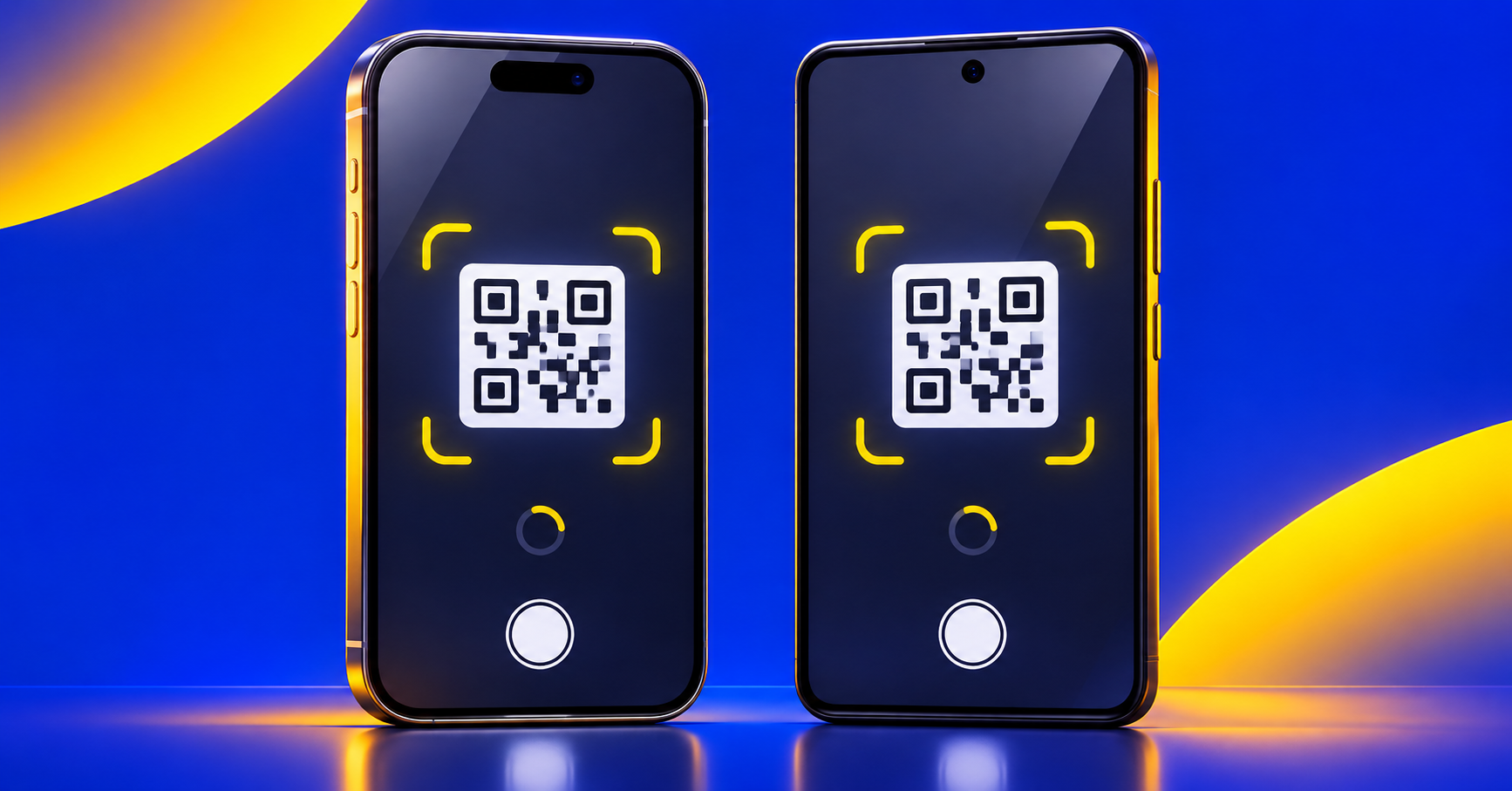
To scan a QR code, open your phone's camera, point it at the entire code and tap the link or action that appears. Most current iPhones and Android phones can do this without a separate scanner app, although the exact options vary by device.
Check the address or action before opening it, especially when the code appears on a public sign, unexpected message or unfamiliar website.
How to scan a QR code on iPhone
- Open the Camera app and select the rear-facing camera.
- Hold the phone so the complete QR code is visible in the viewfinder.
- Wait for the phone to recognize it, then review and tap the notification or link that appears.
If your iPhone does not recognize codes, check that QR code scanning is enabled in Settings under Camera. You can also use the Code Scanner control from Control Center if it is available on your device. Apple provides instructions for scanning QR codes on iPhone.
How to scan a QR code on Android
- Open your phone's Camera app and point it at the complete QR code.
- Hold it steady, then tap the link or action shown on screen.
- If the camera does not recognize the code, look for a QR scanning option in its settings or use Google Lens if available.
Android camera layouts and settings differ by manufacturer and software version. On supported devices, Google Lens can recognize codes from the camera or an image. See Google's camera and QR code guidance for supported Pixel devices.
How to scan a code shown on your own phone
You do not need to point your phone's camera at its own screen. Save or take a screenshot of the image, then open it in your phone's photo app. On compatible iPhones, touch and hold the code in Photos to see available actions. On many Android phones, open the image in Google Photos and choose Lens. Options can vary by model and software version.
If that option is unavailable, open the image on another screen and scan it with your phone, or ask the sender for the underlying link. Avoid installing an unfamiliar scanner app just to read one code.
What to do if the code will not scan
- Clean the camera lens and make sure the whole pattern is visible.
- Improve lighting and tilt the phone or paper to avoid glare.
- Move closer or farther away so the camera can focus.
- Try another device or a larger, clearer copy of the code.
- If a link opens but the page fails, the destination or network may be the problem rather than the scanner.
For more checks, read why a QR code may not work and how to fix it.
Do you need a QR scanner app?
Usually, the built-in camera or a familiar tool such as Google Lens is enough. A dedicated app may be useful for a specific business workflow, but check who publishes it and which permissions it requests. A basic QR scanner does not need access to unrelated personal information.
Scan safely
A QR code can lead to almost any web address. Inspect the destination, watch for misspelled domains or stickers covering an original code, and avoid entering passwords or payment details on an unexpected page. If in doubt, type the organization's known address yourself instead of following the code.
Creating a code for others to scan
If you are sharing a page, create a code with the QRPathway URL QR code generator. Use a dark pattern on a light background, leave a clear border and test the final image with both iPhone and Android before sharing it. For printed materials, use the QR code print-size guide.