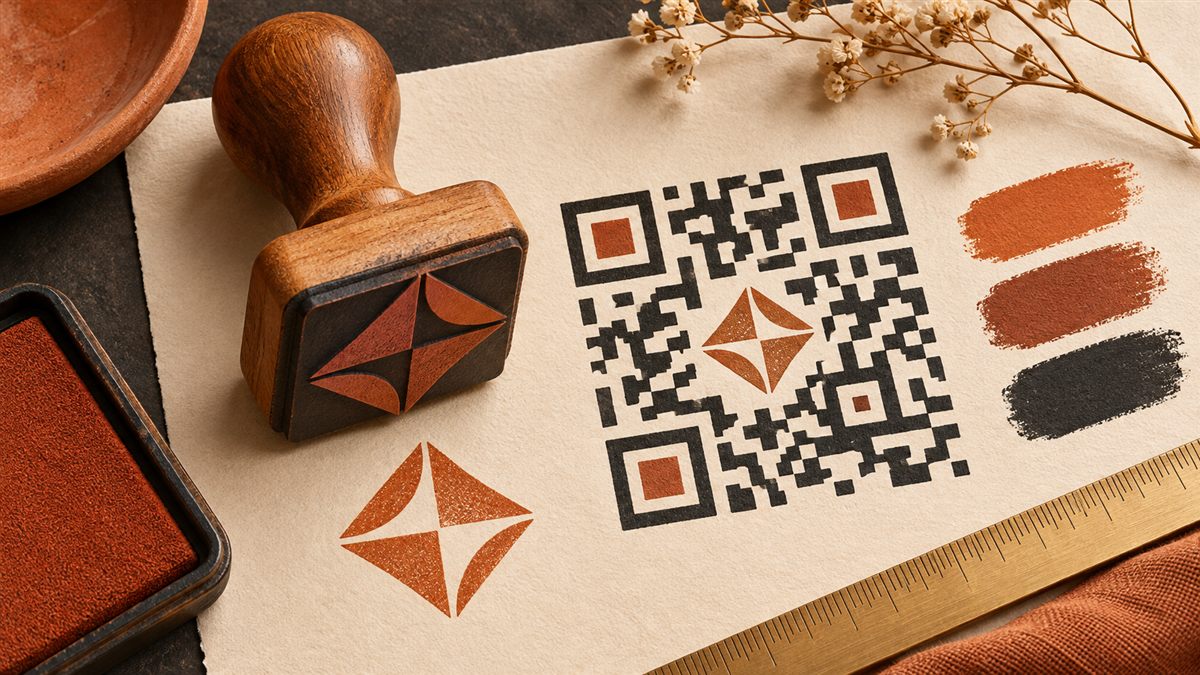
A QR code with your logo can make a sign or package feel connected to your brand. The job of the design is still to scan reliably: use a small, clear logo, strong contrast and an unobstructed border, then test the final image on real devices and printed material.
Start with a destination that works on mobile and a logo you have permission to use. In QRPathway, add the logo through the QR design controls, preview it, download an appropriate format and scan the finished result.
Make the code before adding the logo
Choose what the code should do. A URL code can open a website, booking page or form; a File code can link to an uploaded document; a vCard can offer contact details. If a URL destination may change after printing, choose a dynamic URL where available and keep its managed link active. Compare static and dynamic codes before committing to a large print run.
Open the destination in a private browser window and on a phone. Make sure the page is available to the intended audience and that its main action is clear. A beautiful QR cannot fix a broken or private destination.
Add your logo in QRPathway
- Open the QR code creator, choose the appropriate type and enter the destination or information.
- Open the design and branding controls. Choose a logo image through the available image picker and check the file requirements shown in your account.
- Choose a dark foreground and a light background. Keep the code's surrounding margin and the distinctive corner patterns clear.
- Preview the logo at a modest size. If the pattern is difficult to read or the preview warns about readability, reduce or remove the logo.
- Create or save the code, download it and test it on several devices. Test again after placing it into the final design.

The editor offers colors, patterns, eye styles, frames and other branding choices. Available options may depend on the account. The design tutorial explains the wider set of controls.
Keep the design readable
Use strong contrast. Dark modules on a light, opaque background are a reliable starting point. Brand colors that look attractive on screen can become difficult to distinguish on textured paper or under dim lighting.
Protect the quiet zone. Leave a clear margin around the full QR pattern. Do not put borders, lettering, patterns or other artwork against its edge. If you export a transparent background, check the contrast against every surface where it will appear.
Keep the logo small. A logo covers part of the code. Error correction can help tolerate some damage, but it is not a guarantee that any particular logo size or shape will scan. If testing fails, reduce the logo, simplify the pattern or use an unbranded code. Avoid covering the corner markers.
Consider destination length and physical size. Dense patterns can be harder to print and scan at small sizes. Use an appropriate managed short link where it makes sense, give the image enough space and test the actual output. See QR code size for print.
Choose a file for your artwork
QRPathway's preview offers SVG, PNG, JPG and WebP downloads. Your printer or designer may prefer SVG for scalable artwork; a sufficiently large PNG can work for many digital or print layouts. Confirm what the receiving software accepts and check the exported proof at final size. Repeated resizing, screenshots or compression can blur the edges.
Add a useful label such as “View the menu” or “Book an appointment” near the code, outside its clear border. A logo can establish whose code it is; the label explains why someone should scan it.
Test the complete journey
Print a small proof on the intended material. Scan it using at least two phone cameras where possible, at the expected distance and in realistic lighting. Test glossy surfaces for glare, curved packaging for distortion and dark surfaces for insufficient margin. Also test a downloaded copy on screen if that is where it will be used.
After the camera recognizes the pattern, open the result. Confirm that the correct page or action appears and that a visitor can use it without your own logged-in session. If the pattern scans but the destination fails, check the link, account and website settings; increasing the logo size will not solve a destination problem.
For a large campaign, keep the original exported asset, destination and owner recorded together. If using a dynamic URL, change its destination rather than its alias when an update is needed. Scan an old print after every change.
Common questions
Will a QR code still work with a logo in the center?
It may, depending on the design, error correction, size and output quality. No fixed logo size guarantees a scan. Test the final version, and remove or reduce the logo if reliability suffers.
Can I use brand colors instead of black and white?
Yes, but choose colors with strong light–dark contrast and check the actual output. Avoid combinations that look similar in brightness or disappear against the background.
Can I change the logo on a printed QR code?
Not on an existing printed image. You can create a new visual for future printing. A dynamic link can let you change the destination behind the existing pattern, but it cannot alter the ink already printed.
Create a readable first version in the QR code creator, then use the troubleshooting guide if a proof fails.