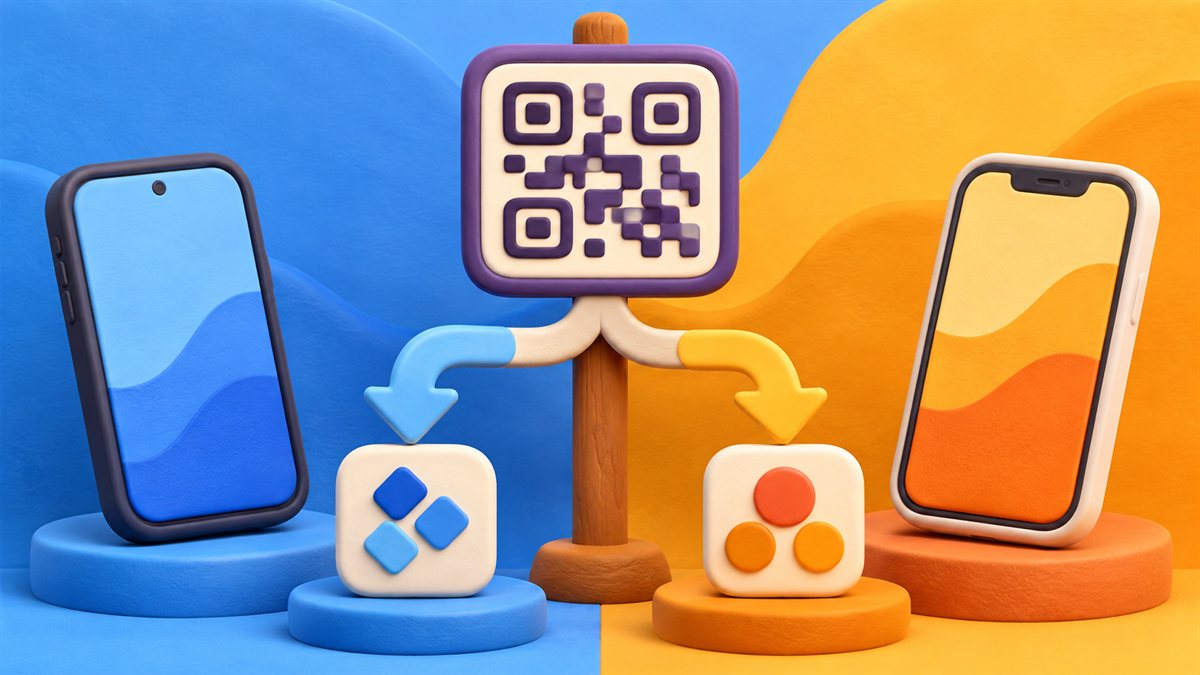
One dynamic QR code can use a managed short link with operating-system targeting. A visitor on an iPhone can be directed to an App Store listing, while an Android visitor can be directed to a Google Play listing. Choose a useful default page for desktop or any device that does not match a rule.
You need the actual public store links for your app and access to the QRPathway account that manages the short link.
Set up the destinations
- Copy your app's iOS App Store and Android Google Play URLs. Open each in a browser to check that it reaches the correct listing.
- In Links, create a short link. Use a neutral app-download page as the Destination URL for visitors who do not match a rule.
- Open the saved short link and expand Targeting.
- Choose Operating system as the targeting type. Select Create to add a rule, choose iOS, and enter the iOS store URL.
- Add an Android rule with the Google Play URL. Review the default destination and select Update.

The address in this screenshot is an example. Use your own app listings when configuring the link. The default destination matters: if you use an Android listing as the default, a desktop or other unmatched device may be sent there too.
Connect the short link to a QR code
Open QR codes → Create QR. Choose URL, enable Dynamic QR code, then choose Select from pre-existing links and select the short link you configured. Customize, create and download the code.
If you have not used a managed link before, start with the dynamic QR code guide.
Test before printing
- Scan the same finished code with an iPhone and an Android phone; check the actual store pages.
- Open the short link on a desktop or another unmatched device and check the default page.
- Check that the listings are available to your intended audience and that your link settings remain active.
- Test again after changing the store URLs. Keep the short-link alias unchanged once the code has been printed.
Targeting is based on information available to the redirect service and may not identify every device as expected. Offer a fallback page with both store links when practical.
For an earlier demonstration, watch the video walkthrough on YouTube. The interface labels in the video may differ from the current steps above.