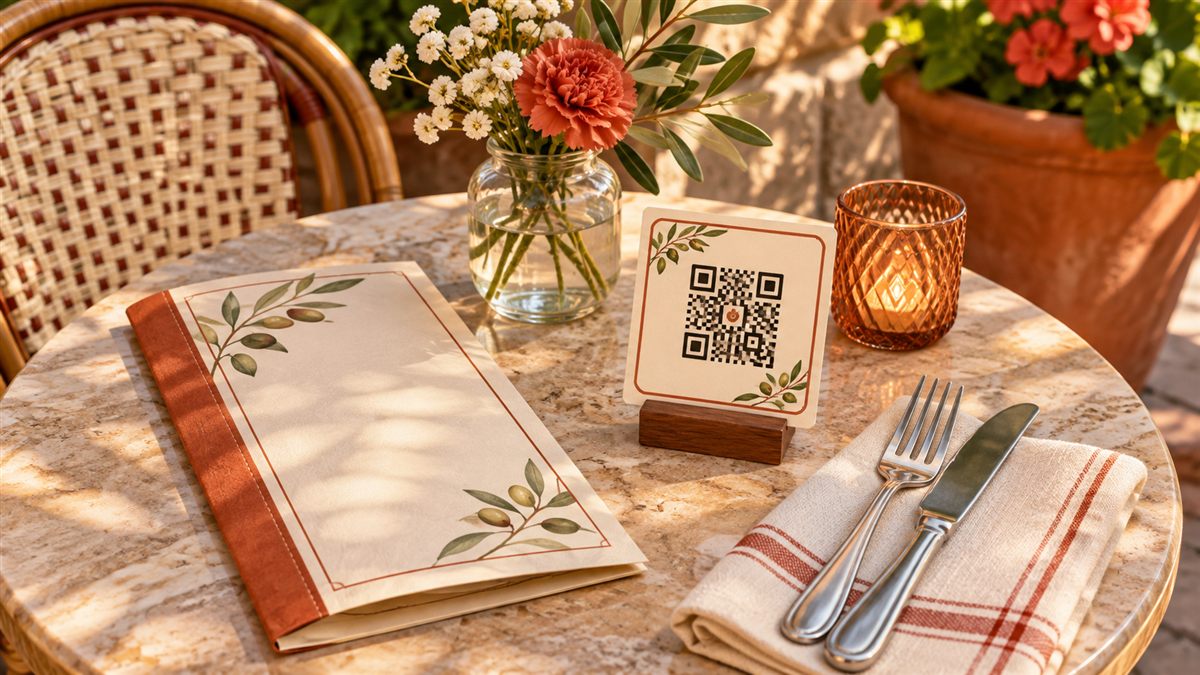
A restaurant menu QR code gives guests a quick way to open your menu on their phone. You can link to a menu page you already maintain or use QRPathway's File type for a supported uploaded document. For a menu that changes, choose an option you can update and test before printing table cards.
Start by checking how the complete menu looks on a guest's phone, including every page and the current prices.
The code is only the entry point. The menu itself should be readable on a phone, current, and available without an unnecessary sign-in. Keep a printed or staff-assisted option available for guests who prefer it.
Choose where your menu will live
| Your menu | A practical QRPathway option | What you update later |
|---|---|---|
| A PDF or other supported file you want to manage in QRPathway | File QR code | The uploaded file in the saved file-code workflow |
| A menu page already on your website | URL QR code | The page at that address; a dynamic link can also be redirected |
| A menu hosted by an external ordering service | URL QR code | The external menu or the managed destination |
A static URL stores the address in the QR pattern. If you keep that address and update the page at the same address, guests can see the changed page. If the address itself must change, the already printed code cannot be edited.
A dynamic URL uses a managed short link. You can change the destination behind that link without changing the printed pattern, provided the link and account remain active. A QRPathway File code also uses a managed link for an uploaded file. Check your account's current plan and file limits before depending on a long-running print order.
Prepare a menu guests can actually use
Before creating the QR code, open the menu on a phone. Check the full journey rather than only whether the code scans:
- Use readable text and a layout that does not require constant zooming or sideways scrolling.
- Check that prices, availability, opening hours and contact information are current.
- Make sure the menu opens for a visitor who is not signed in to your business account.
- Decide whether you need separate menus for different locations, languages or service periods.
- Keep accessibility in mind: a mobile web page with selectable text can be easier for some guests than a scanned image of a paper menu.
For a PDF, use an actual text-based document when possible, rather than a photograph of a menu. File handling can vary by phone and browser, so check what visitors see on your own devices. QRPathway's interface describes PDFs as opening in the browser and other supported file types as downloads; test your specific file.
Option 1: Create a QR code for an uploaded menu file
- Sign in to QRPathway and open QR codes → Create QR.
- Name the code so staff can recognize it later, such as
Main dining room menu. - Choose File under QR Type and select your prepared menu document.
- Check the supported file formats and maximum size shown in your account.
- Choose a clear design, create the code and download the image.
- Scan the downloaded image on more than one phone and verify the menu opens as intended.

When the menu changes, open the saved file QR, select the updated file in its edit screen and save. Then open the original managed link and scan a previously downloaded copy of the QR code to confirm that guests receive the correct menu. Do not change the short-link alias after printing.
See the file QR code tutorial for the full workflow and file-sharing considerations.
Option 2: Link to a menu page
Copy the public URL of the menu page and open it in a private browser window. In QRPathway, choose URL as the QR type and paste that address. If the destination may move later, enable Dynamic QR code where available. Create, download and scan the finished code.
For example, a café may keep its menu at the same website address and update the page each morning. A restaurant that changes website providers may prefer a managed dynamic link, so it can change the destination behind the printed code. In either case, confirm that the page remains available to guests.
If you use a third-party menu or ordering platform, that platform handles the menu, orders and payments. QRPathway creates the code and, for managed links, the redirect; it does not by itself process restaurant orders.
Example: a menu that changes by season
Imagine a restaurant that prints table cards for the whole year but changes its menu four times. The manager creates a File QR for the first menu and labels it Dining room – current menu in the account. The printed card says “View our current menu.” When the next menu is ready, the manager replaces the file, saves the change and scans an existing table card before guests arrive.
This is a fictional example. Its value is the workflow: the printed artwork is kept separate from the menu content. The manager still needs access to the account and should check the uploaded file, the managed link and the final guest experience each time. If the restaurant has a well-maintained menu page instead, it can keep the same page address and update that page, or use a dynamic URL for a destination that may change.
For multiple branches, make an explicit choice. A single shared menu may be appropriate when the offerings are identical. When prices or availability differ, create and label separate links or files so a table card in one branch does not accidentally show another branch's menu. Keep a simple record of which code appears at each location.
Design the table card
Tell guests what they will get. A short label such as “View today's menu” is more helpful than a code without context. Place it where people can reach it comfortably and where spills, folds or glare are less likely to obscure the pattern.
Use a dark pattern on a light background, retain a clear border around it, and avoid a large logo over the center. Print a proof on the actual paper or material. Test it under the lighting at a table, from a normal seated distance, on both iPhone and Android if available. The QR code print-size guide explains what to check.
Keep it working after the first print run
Assign someone to own the menu file or page and the QRPathway account. When prices or dishes change, update the correct source, then scan an existing printed card. If you have multiple branches, name each code clearly and verify that the correct branch menu opens.
For a dynamic link, QRPathway can show managed-link activity, subject to your plan. A link visit is not the same thing as an order or a completed purchase. If you compare table cards, use separate links for placements you want to distinguish and measure orders in your ordering system. See how to understand QR code analytics.
A menu-change checklist
When you update the menu, use a short checklist so the old and new versions are not confused:
- Confirm that the new file or page is the one intended for that location and service period.
- Keep the same managed link and alias if the code is already printed.
- Open the link in a private browser window, then scan a table card on a phone.
- Check the first page, prices and any pages at the end of the menu; cached or outdated files can be missed if you only inspect the cover.
- Ask a staff member to repeat the check using a different device or connection when possible.
If guests report an old menu, check the browser or service cache and the actual file or destination before reprinting the QR. If the account or link is inactive, restoring the image alone will not restore the destination.
Common questions
Can I change a menu without printing a new code?
Usually, yes, if the existing code leads to an address or managed file you can update. A static QR containing a fixed URL still works when you update the page at that same address. A managed dynamic URL can point somewhere new. A File QR can be updated through its saved file workflow; test the original code after replacing the file.
What if a guest cannot open the menu?
First check whether the camera reads the code. If it does, check the internet connection, menu address, file access, account status and whether the destination requires a sign-in. Keep a printed menu or another accessible option available. For print problems, use the QR troubleshooting guide.