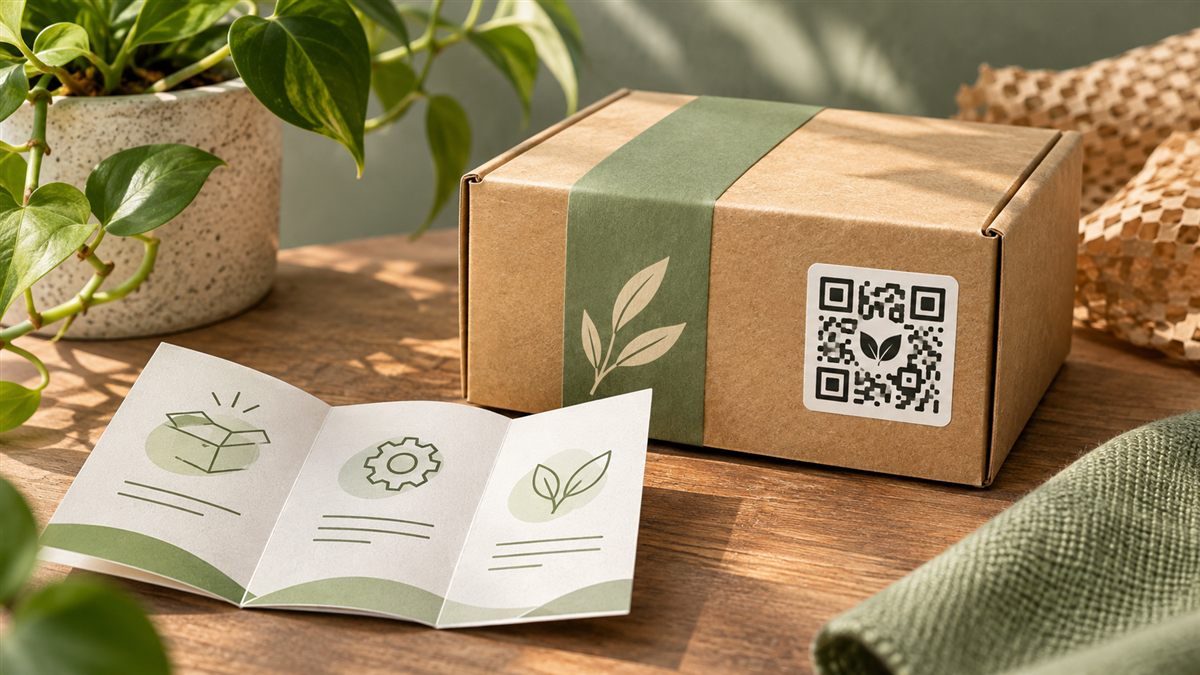
A QR code on product packaging can lead a customer to a manual, setup video or support page without requiring a long address to be typed. Choose a useful destination, create a QR code, place it with a clear label and scan a print proof on the actual packaging.
For a document that changes, QRPathway's File type can use a managed link to an uploaded file. A dynamic URL can instead point to a support page or an externally hosted manual and be updated later. Check the available plan and test the full customer experience before manufacturing a batch.
Decide what the code should open
| Customer need | Destination to consider |
|---|---|
| First-time setup | A mobile-friendly setup page with the right model and steps. |
| A downloadable manual | A supported file through QRPathway's File workflow, or a public manual URL you maintain. |
| Support or replacement parts | A support page with contact options and model information. |
| A demonstration | A publicly accessible video or an accessible page containing it. |
Include the product model and language at the destination so customers can tell they are viewing the right instructions. Keep required safety information and legally required labelling available in the forms applicable to your product and market; a QR code should not be the only path to essential information.
Create a code for a file
- Prepare the current manual and open it on a phone. Check its title, version, full set of pages and legibility.
- In QRPathway, sign in, open QR codes → Create QR, and choose File.
- Upload the supported file, check the account's displayed size and type limits, and name the code after the product and language.
- Choose a high-contrast design, create and download the code.
- Open the original managed link and scan the finished packaging proof. Confirm that the intended manual opens or downloads.

The File QR workflow is designed to allow the owner to replace the uploaded file later. Keep the original managed link and test the same printed code after an update. PDF viewing and file downloads depend on the device and browser. The file QR tutorial covers the workflow in detail.
Use a dynamic URL for a support page
If a website holds several manuals, choose URL, enter the product's public support page and enable Dynamic QR code where available. Keep its managed link and alias unchanged after printing. You can then update the page itself or change the managed link's destination if the page moves. Open the old printed code after each update.
Keep discontinued products in mind: a customer may scan the box years after purchase. Record who owns the link, how long the support page should stay available and where the code appears. If the account, domain or link expires, the printed image cannot restore access by itself.
Design for the actual package
Place a short instruction beside the code, such as “View the setup guide.” Include a readable fallback URL or support contact. Leave a clear border around the pattern and avoid folds, seams, reflective coatings and curved areas that distort it. Check contrast against the finished material, not only a bright screen mockup.
Ask your printer for a proof at the actual size. Test different phones, expected scanning distances and ordinary lighting. If your packaging must meet a retail supply-chain specification, consult your trading partners' requirements; GS1's 2D barcode guidance discusses printing and placement. A marketing QR is not automatically a substitute for a required retail barcode.
Plan for versions and languages
A fictional appliance maker sells two models in three languages. Rather than assuming one code serves every customer, it labels each managed destination by model and checks that the page offers the correct language. When a manual is corrected, the owner updates the relevant file or page, opens the original link and scans a retained box sample. A small record of model, artwork version, link and owner prevents an update for one model from breaking another.
Do not put private customer information, credentials or unique access secrets into a publicly visible code. If access control matters, check the destination's own permissions as well as any QRPathway link protection.
Common questions
Can the same printed code open an updated manual?
Yes, when the original code leads to a maintained page, editable dynamic link or replaceable File QR, and the relevant service remains active. Test the original print after replacing the file or changing the destination.
Can a QR code replace printed safety instructions?
Do not assume so. Requirements vary by product and market; keep essential information available as required and provide an accessible alternative.
What if the code scans but the manual does not open?
Check the original managed link, file access, account status, connection and the visitor's device. If the camera cannot read the pattern, use the QR troubleshooting guide.
Start with a File or URL QR code and test it against a real packaging proof.