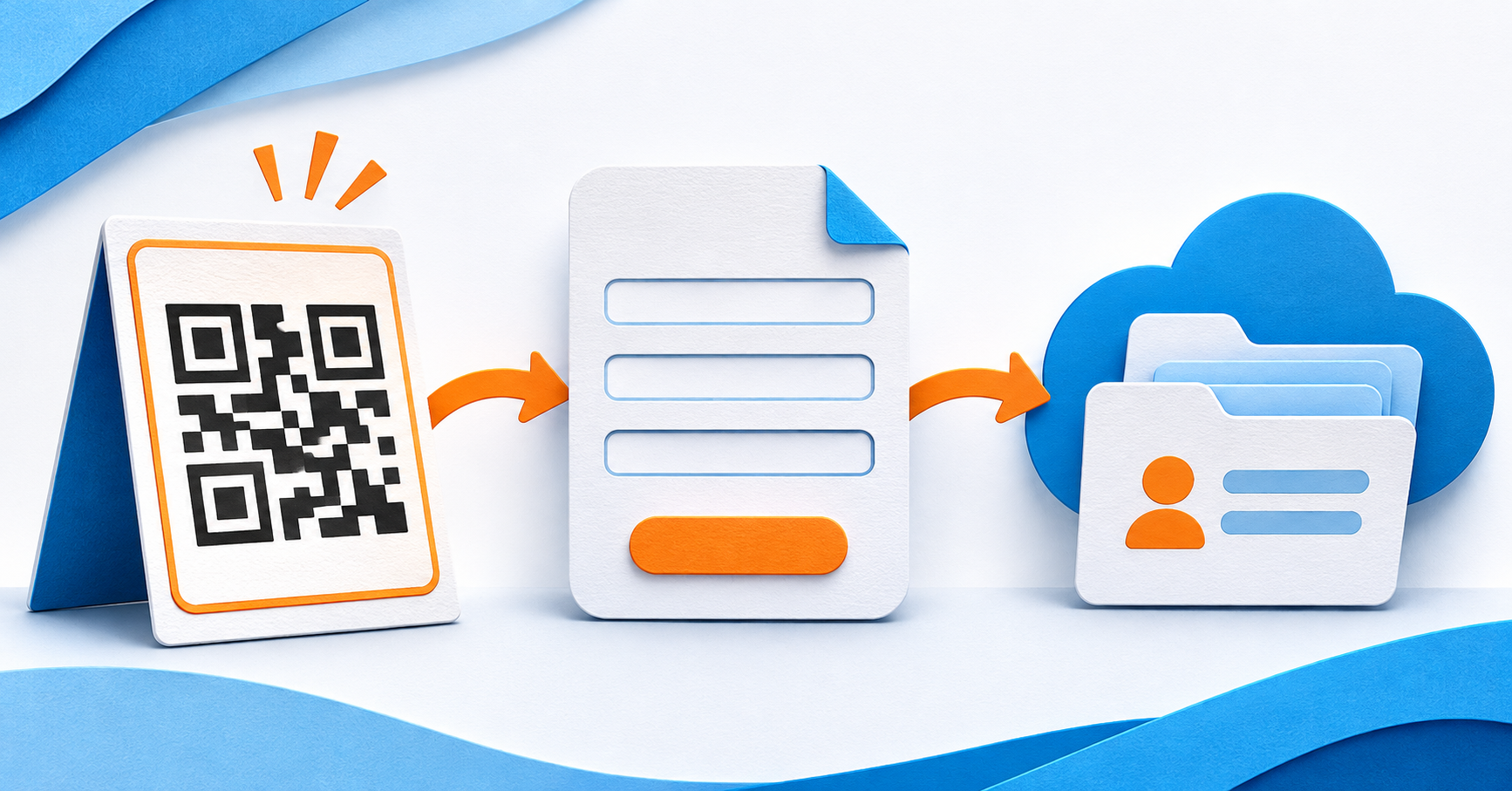
A Salesforce QR code can take someone from a printed sign or handout to a web page containing a Salesforce Web-to-Lead form. When they complete the form and Salesforce accepts the submission, Salesforce can create a lead. The scan opens the page; it does not create a lead by itself.
This guide shows how to connect those steps using a URL QR code in QRPathway and a form configured in Salesforce. It does not require a native connection between the two products.
What you need before you start
- A Salesforce account with access to configure Web-to-Lead and the necessary permissions.
- A publicly accessible, mobile-friendly page where your Web-to-Lead form is hosted.
- The URL of that page and a QRPathway account if you want to use a dynamic QR code.
Salesforce's Web-to-Lead setup documentation explains the Salesforce configuration. Your Salesforce administrator or website developer may need to help publish the generated form and configure your organization's lead handling.
How to create a QR code for a Salesforce lead form
1. Prepare and publish the form
In Salesforce, set up Web-to-Lead and generate a form with the fields your team needs. Place the form on a page you control, explain why you are collecting the information and include any consent language your organization requires. Keep the form easy to use on a phone.
Visit the page in a private browser window. If it requires an internal Salesforce login or is not reachable from outside your network, it is not ready for a public QR code.
2. Copy the page URL
Copy the full address of the public page that displays the form. Open it on a phone and check that the correct form loads. The code should point to the page visitors actually need, not to an internal Salesforce setup screen.
3. Create a URL QR code
Open the QRPathway URL QR code generator and enter the form-page URL. Choose a static code if you are comfortable keeping that encoded address unchanged. If you need to change the destination later, choose a dynamic URL code and keep access to the account that manages it. Available features depend on your plan.
Use a dark code on a light background, leave clear space around the pattern, and add a short call to action near the code, such as “Request a demo.” Download the image in a format suited to your material.
4. Test the complete journey
- Scan the code on more than one phone and confirm it opens the intended page.
- Submit a test using clearly identified test information.
- Check in Salesforce that the lead arrived with the expected fields and routing.
- Check any confirmation page and remove the test record according to your team's process.
Also test a proof at its actual print size and scanning distance. Our QR code print-size guide covers the practical checks.
What can you measure?
A dynamic QR code can provide scan or link-visit statistics in QRPathway, depending on your settings and plan. Salesforce records the leads it accepts from the form. These are different events: a visitor can open a page without submitting, submit more than once, or visit through another route. Do not treat scan counts as an exact count of new leads.
If you need campaign attribution inside Salesforce, plan that separately with your Salesforce administrator. For example, agree how the form or landing page will supply a campaign identifier and test that the data reaches the intended Salesforce fields. A QR code alone does not create campaign attribution.
Example: a trade-show demo request
A software team places a QR code beside a “Request a demo” sign at its booth. The code opens the team's mobile-friendly form page. A visitor chooses whether to submit their details; Salesforce processes accepted submissions as leads. The team can compare QRPathway's visit count with Salesforce lead submissions, while recognizing that the two numbers measure different actions.
Common problems
- The code opens a login page: check the destination is a public form page, not an internal Salesforce URL.
- The page opens but no lead appears: test the form itself, required fields and Salesforce Web-to-Lead setup with your administrator.
- The code won't scan: check contrast, clear space and print quality. See QR code troubleshooting.
- The destination has changed: update an editable dynamic code in the account that owns it, then test again. A static code's encoded URL cannot be changed after printing.
Frequently asked questions
Does scanning a QR code automatically create a Salesforce lead?
No. In this workflow, scanning opens the form page. A lead is created only after a visitor submits the form and Salesforce accepts it.
Do I need a native QRPathway and Salesforce integration?
No native integration is required for this URL-to-form method. QRPathway supplies the QR link and Salesforce handles the Web-to-Lead form submission.
Can I change the form page later?
If you created an editable dynamic URL code, you can update its destination in QRPathway and test the new page. With a static code, the encoded URL remains the same, although the page at that address can still be updated by its owner.