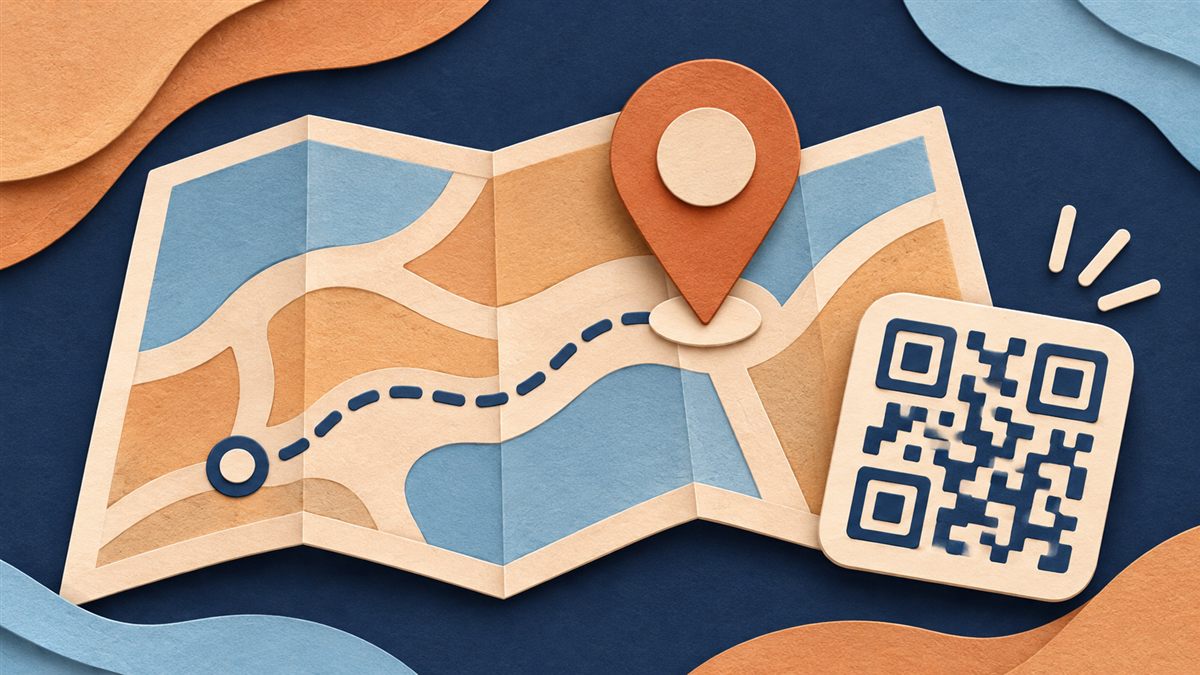
A Google Maps QR code gives customers a quick way to open a place on their phone and request directions. Find your business in Google Maps, copy the place's share link, and create a URL QR code in QRPathway. Before printing, scan it from another device and check that it opens the correct entrance or listing.
The QR code shares a link; Google Maps and the visitor's device handle the map and directions. A visitor may still need to choose a starting point and confirm the route.
Copy the right place link
Search for the exact business or location in Google Maps. Check the address, branch and map pin. For a location inside a larger building, consider whether the listed pin points to the entrance customers should use. Follow Google's current instructions for sharing a map or location to copy its share link.
Open the copied link in a private window or on another phone. Confirm that it shows the public listing intended for customers. A link copied from an account-specific page or search result may not behave as expected for everyone.
If your business has several branches, copy and label each link separately. Do not use one branch's code on every sign unless that is intentional.
Create the QR code
- Open QRPathway's URL QR code creator. If you are signed in and see the general creator, select URL under QR Type.
- Paste the Google Maps share link. Give the saved code a useful name if you are signed in.
- If the destination may need to change, sign in and choose Dynamic QR code where available. A managed dynamic link can be updated later, provided it stays active and its alias does not change.
- Choose a clear pattern, contrasting colors and a visible margin. Create and download the image.
- Scan the image with a phone that is not signed in as your business. Check the place name, branch, address and directions flow.

A static URL code also works when it contains the correct link, but you cannot change the encoded address on printed copies. A dynamic URL can point to a new destination if the business moves, though you should also update the map listing and any printed address.
Google Maps link or coordinates?
QRPathway also offers a Location type with latitude and longitude. A coordinates code can be useful when you want to share a particular point rather than a business listing. The scanning device decides how to handle that location, so test it on the devices your visitors use.
A Google Maps share link is useful when you specifically want visitors to see that service's place or listing. Check that the shared link leads to the right place and remains available. Neither choice guarantees that every phone will open the same app or show the same route.
Where to place a directions code
On appointment cards, add a label such as “Open directions to our studio” and include the written address as an alternative. Event posters can use a location code beside the venue name; hospitality businesses can put one in a welcome email or printed itinerary. For multiple entrances or parking areas, explain which one the code represents.
Give people enough time and room to scan. A QR on a vehicle or roadside sign may be unsafe or impractical for someone in motion. Test the printed proof at the expected distance, with a clear border and enough contrast. Use the print-size guide for a checklist.
If your address changes
Update your business listing and website information first. If the printed QR opens a QRPathway dynamic link, change its destination in the managed link editor without changing its alias, save, and scan the old print. Update the written address on new materials too; a working code beside an outdated address can still confuse customers.
If the code contains a fixed Google Maps link, its pattern cannot be edited. Test the existing link after updating your listing, because behavior can vary; if it does not lead to the right location, replace the printed code. See how dynamic QR codes work.
Troubleshooting
If the camera does not recognize the image, check the print size, contrast, quiet border and damage. If it recognizes the code but the place is wrong, check the copied share link and whether the correct code was inserted into the final artwork. If the link opens a browser instead of the app, test the visitor's device settings and use an alternate written address.
Managed-link statistics, when available, count link activity; they do not confirm that a visitor followed directions, arrived at your location or made a purchase. Use location data carefully and follow your own privacy obligations.
Common questions
Can a QR code show directions to a business?
It can open a map place or location from which the visitor can request directions. The map service and device control the final route and display.
Should I create a different code for each branch?
Usually, if each sign should open a different branch. Name each code clearly and test its place and address before printing.
Can I change the place after printing?
You can change the destination of an active editable dynamic URL link while keeping its alias. A directly encoded static link cannot be changed in the existing pattern. Check your plan and test the original print after any update.
Ready to share your location? Copy a public place link and create it with the URL QR tool.