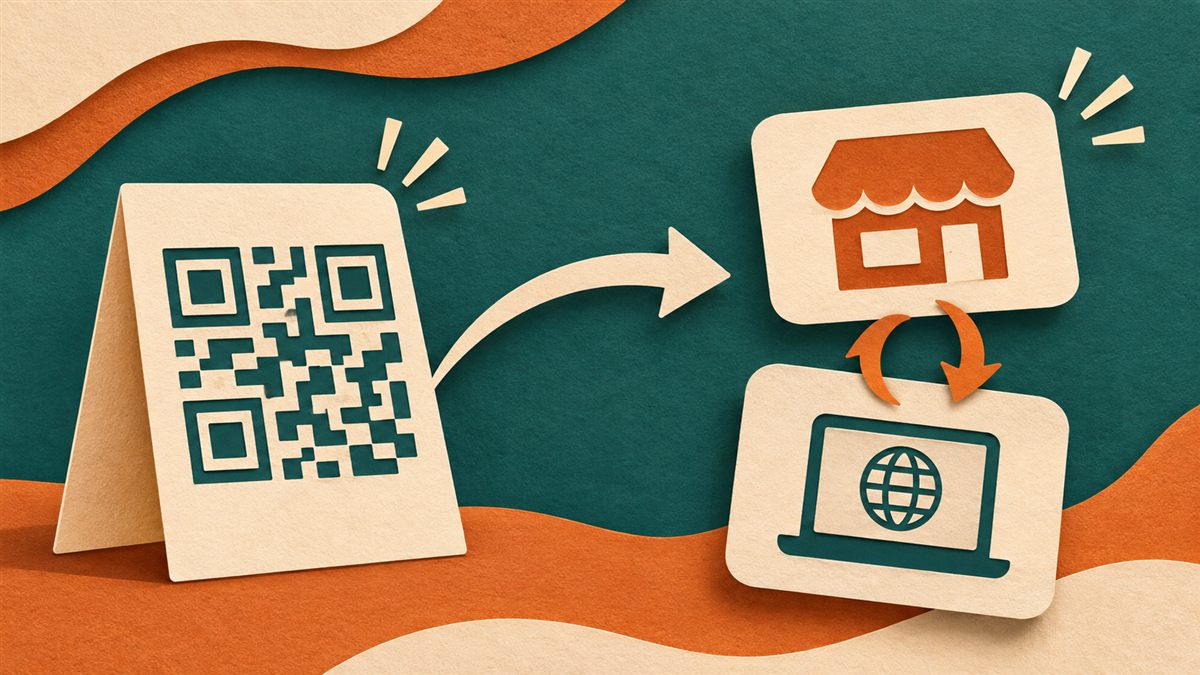
You cannot change the pattern on a printed QR code. You may, however, be able to change what visitors see after they scan it. If the code points to a managed dynamic link, update the destination behind that link and leave the link and its alias unchanged. If it contains a direct URL, you can update the page at that same address, but you cannot make the printed pattern encode a different address.
The distinction matters before spending money on signs, packaging or business cards. First identify what your existing code contains; then choose the right update path.
Identify what your printed code opens
Scan the original code on a phone and examine the link or information it contains before you make changes. If you manage the code in QRPathway, open its record and look for an associated short link. For a code created elsewhere, check the original provider and account. Never assume a code is dynamic just because it opens a website.
| What the code contains | What you can change |
|---|---|
| A direct website URL | The content served at that exact URL, if you control the website. The printed code still contains the original address. |
| An editable managed short link | Its destination, while keeping the original link, alias and service active. |
| Fixed text, a phone number or Wi-Fi credentials | Those encoded values cannot be changed on existing printed copies. |
| A QRPathway File link | The saved file workflow allows the owner to replace the uploaded file; test the original link and code after saving. |
If you no longer control the account, domain or website behind a code, regain access or arrange a replacement. An image of the QR pattern does not give you control of its destination.
Update a QRPathway dynamic URL destination
- Sign in and find the saved QR code. Open its linked short link for editing.
- Check the current short-link address and alias against the one opened by your printed code. Record it before editing.
- Change the destination URL to the new public page and save. Keep the short-link alias unchanged.
- Open the original short link in a private window. Then scan an existing printed copy on a phone and check the complete destination.
- Repeat on another device or connection when possible. Check any schedule, password, targeting or expiration settings that could affect the result.

The link must remain active, and account or plan limits can affect availability. Do not delete the managed link or replace it with a new one and expect old print to follow it. See the dynamic QR code guide for the initial setup.
What if the code was created as a static URL?
If the code opens a page you own and that address still works, change the content of that page. A restaurant can update its menu at the same page address without changing a static code. If the site moves, your website administrator may be able to redirect the old page to the new one; that is a change on the website, not an edit to the QR code. Test it for as long as the printed material is in use.
If you cannot control the old address, you generally need a new code. For material already distributed, consider a clearly labelled replacement sticker and test it on the actual surface. Cover the old pattern completely so a camera does not see conflicting patterns. For expensive packaging, confirm the correction with the printer before producing a large run.
Example: updating a printed promotion
A shop prints a dynamic QR on a counter sign for a seasonal collection. After the season, the owner changes the managed link's destination to the current collection, keeping the same alias. The owner opens the original link and scans the counter sign to confirm the new page is public and works on mobile. This is a fictional example: the sign remains useful because the destination is managed separately from the image.
If the sign had encoded the original collection URL directly, the owner would instead need to maintain that URL, configure a website redirect, or replace the sign. Updating the QRPathway record for a different code would not affect it.
Before you reuse an existing code
- Check the promise beside it. If the sign says “View the summer sale,” a winter landing page may confuse visitors even if the link works.
- Verify access. Open the destination without your business account session. Check that any forms, files and mobile navigation work.
- Review the campaign record. Note which physical locations and products carry the code, who owns the link, and when it was last checked.
- Avoid accidental alias changes. Even a short spelling change creates a different address from the one embedded in old print.
- Test the physical item. A working link is not enough if a label is scratched, too small or obscured. Use the print-size guide.
Common questions
Will the same QR image work after the destination changes?
It can, when the image points to the same active managed link and only the destination behind that link changes. Scan the old image after the update to confirm. A copied image cannot repair a disabled or deleted link.
Can I update a file without changing the code?
QRPathway's File QR workflow is designed to let the owner replace the saved file behind its managed link. Keep the original link and test that the intended file opens or downloads. For setup, see how to create a file QR code.
Does changing the destination reset analytics?
Check the statistics for the existing managed link and the selected date range. Do not assume a visit proves someone scanned a physical code or completed an action on the new page. See QR code analytics for interpretation.
Planning a new print run? Create a dynamic URL QR code, keep a record of its managed link, and test the final artwork before ordering.